6 Essential iPhone Camera Tips for Taking Great Photos - MacRumorsOpen MenuShow RoundupsShow Forums menuVisit ForumsOpen Sidebar
Skip to Content

6 Essential iPhone Camera Tips for Taking Great Photos

Apple's iPhones include several headline camera features that are worth using, such as Portrait Mode and Photographic Styles. But if all you want to use is the standard photo mode, there are still several tools and settings that can improve the composition of your pictures and help you capture the perfect shot using more traditional techniques.
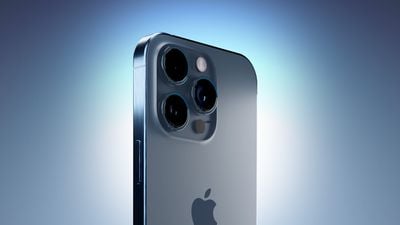
iPhone 15 Blue Three Quarters Perspective Camera Closeup Feature
Whether you are the owner of a new iPhone or a longtime user looking to up your iPhone photography game, here are six camera tools and settings in iOS that are worth checking out and experimenting with.

1. Use the Rule of Thirds

For a while now, Apple's Camera app has included a few optional settings that can help you line up your shots. Foremost in these settings is the Grid tool, which should be used when applying the rule of thirds. It divides the frame of your photo into a grid with two horizontal lines and two vertical lines, creating nine equal parts.
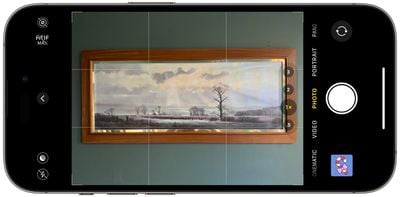
grid camera tool
The rule of thirds helps guide the viewer's eye to the most important parts of your photo and creates a more harmonious composition. Here's how to overlay a grid on the viewfinder.

  1. Open the Settings app on your iPhone.
  2. Scroll down and tap Camera.
  3. In the "Composition" section, toggle on the switch next to Grid.
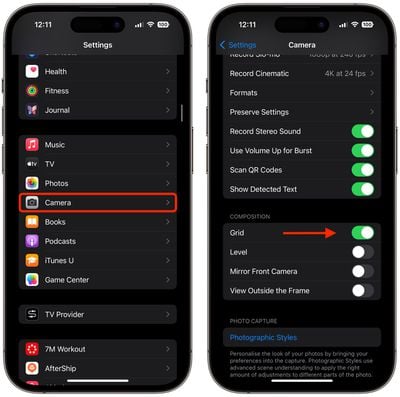
settings

Here are five things to keep in mind when using the grid to apple the rule of thirds.

  • Identify the Key Elements: First, identify the main subjects or elements in the scene you want to photograph. These could be a person, a building, a tree, or any focal point.
  • Positioning the Subjects: Place these key elements along the lines or at the points where the lines intersect. For instance, if you're taking a photo of a person, you might position them along one of the vertical lines, rather than in the center of the frame.
  • Horizontal Elements: For horizontal elements like the horizon in a landscape, align them with one of the horizontal lines. For a more dramatic sky, place the horizon on the lower line. For more emphasis on the land or sea, place it on the upper line.
  • Balancing the Image: Use the rule of thirds to balance your photo. If you place a subject on the left, consider having something of lesser importance on the right to create a sense of balance.
  • Experimentation: While the rule of thirds is a guideline, it's not a strict rule. Feel free to experiment with it and see how shifting elements in your frame changes the photo's impact.

2. Straighten Top-Down Shots

If you're taking a picture of something from above like a plate of food or an ornament on the ground, consider using the camera level, as it helps you capture a balanced shot without having to use a tripod arm or mount. It's also useful for taking a shot of something directly above you, like an object on the ceiling or in the sky.
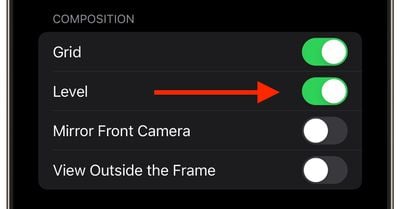
level camera tool setting
The camera level tool used to be part of the Grid overlay, but Apple separated out the function in iOS 17, and it now has its own switch: Open the Settings app on your iPhone, select Camera, then toggle on the switch next to Level. Now you are ready to use it.

  1. Open the Camera app, and set the capture mode to Photo, Portrait, Square, or Time Lapse, using the sliding menu above the shutter button.
  2. Point the camera straight down above your subject (or straight up if the subject/scene you want to capture is above you).
  3. Line up the floating crosshair with the fixed crosshair in the center of the screen by adjusting the angle of your phone's camera. The crosshairs will both glow yellow when in perfect alignment.
  4. Tap the shutter button to capture the shot.
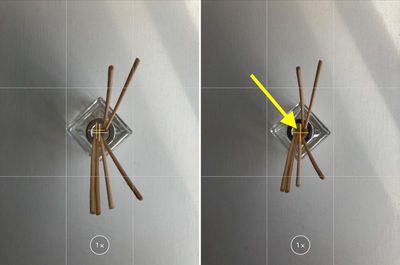
camera level tool in action

The aligned crosshairs turn yellow (right), indicating the lens is parallel with the ground.

3. Straighten Your Horizontal Shots

By making the Level tool an individual option in iOS 17, Apple has also included an additional horizontal level for more traditional straight-on photos.
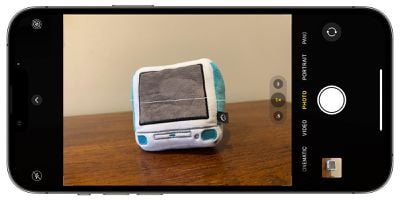
ios 17 camera level no
Turning the Level option on makes a broken horizontal line appear on the screen when your iPhone senses that you're lining up for a straight-on shot and you tilt your device slightly out of horizontal. The line appears white while your phone is out of level and then turns yellow once you achieve a level orientation to indicate success.
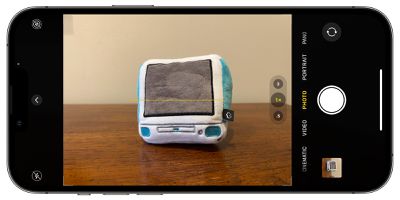
ios 17 camera level
With the Level setting enabled (Settings ➝ Camera ➝ Level), try it for yourself. Open the Camera app and try shooting a subject at a straight angle, and you should see the broken horizontal lines in the center of the viewfinder. Straighten your angle up to connect the lines and make a single yellow line.

The leveling pop-up only appears briefly and only within a narrow range of angles close to horizontal (in either portrait or landscape orientation), so it won't intrusively pop up when you're intentionally trying to take a photo at an angle.

4. Take Burst Photos

Burst Mode refers to when the camera on your iPhone captures a series of photos in rapid succession, at a rate of ten frames per second. It's a great way to shoot an action scene or an unexpected event, since you're always more likely to end up with the picture you were aiming for.

burstmode
To shoot in Burst Mode, simply long press on the Volume Up button and your iPhone will take a series of photos in quick succession. Notice that a counter increases inside the on-screen shutter button for as long as you hold down the volume button. This indicates how many shots are being captured in the current burst. Simply take your finger off the volume when you want to end the burst of shots.

When you take a series of burst photos, they automatically appear in the Photos app under the Album name Bursts. You'll also find them in your main Photo Library. Follow the link to learn how to view and select the best of your Burst photos in the ‌Photos‌ app.

5. Mirror Your Selfies

When you take a selfie with your iPhone using the Camera app, it automatically flips – or mirrors – the image so that it's an inverted version of the mirror image you see in the preview before you take the shot.
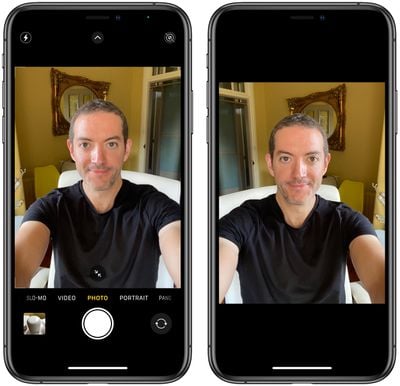
selfie
This can look odd, since it makes a big difference to how selfies look. It can also be annoying, since most third-party social media apps automatically take mirrored selfies, which means you're more likely to be used to the mirroring functionality than the flipped selfies that your ‌iPhone‌ takes.

Fortunately, you can change this default behavior of the Camera app, meaning that you can get the mirrored selfie you're probably more accustomed to seeing. Here's how.

  1. Launch the Settings app, then scroll down and select Camera.
  2. Toggle the switch next to Mirror Front Camera to the green ON position.
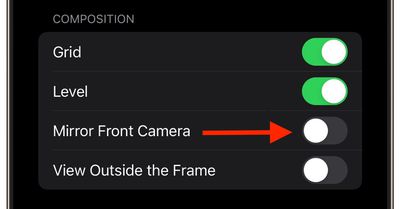
settings
That's all there is to it. From now on when you use the Camera app to shoot a selfie, you'll capture the same shot that you saw in the app's preview mode.

6. View Outside the Frame

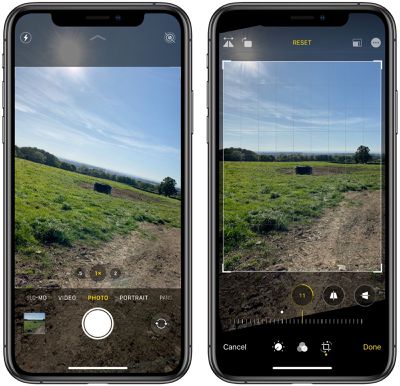
On iPhone 11 and later models, there is an optional camera setting that allows you to see what is outside the bounds of your photo's frame, so you can correct the alignment of photos (and videos) without having to resort to cropping.
capture shot outside frame iphone 11 camera 2
With the "View Outside the Frame" setting enabled, when shooting using the wide lens or the telephoto lens, the camera will simultaneously shoot using the next widest sensor. So the wide lens is active when you shoot with the telephoto lens, and the ultra-wide is active when you shoot with the wide.

  1. Open the Settings app.
  2. Scroll down and tap Camera.
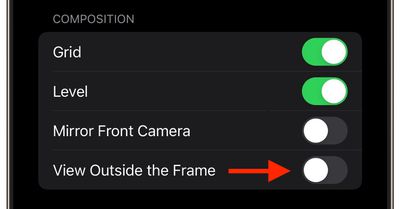
  3. Under the "Composition" section, toggle on the switch next to View Outside the Frame.
settings

You may have to play around with zoom levels to switch between lenses, but you'll know the feature is active when the camera interface turns semi-transparent to reveal the surroundings outside of the viewfinder.


Popular Stories

Home Hub Command Center with Dome Base Feature

Apple Smart Home Hub to Feature iMac G4-Style Design

Wednesday September 30, 2026 4:36 am PDT by
Apple's long-rumored smart home hub will have an iMac G4-style design and a host of unique features, Bloomberg's Mark Gurman reports. The smart home hub is said to feature a square 6-inch display, with variants that can be placed on a countertop or mounted on a wall. It features a single FaceTime camera on the front, with microphones and speakers in its connected base. Gurman described the...
HomePod minis on gradient feature 1 1

Three New Apple Smart Home Products Coming on October 13

Wednesday September 30, 2026 4:04 am PDT by
Apple plans to introduce a series of new smart home products on Tuesday, October 13, according to Bloomberg's Mark Gurman. Apple reportedly plans to debut its long-awaited smart home hub device, a new HomePod mini, and a new Apple TV on the date. The new HomePod mini and Apple TV are set to retain their existing designs, but tout faster chips to support Siri AI. The new HomePod mini will...
Apple TV Sans Remote Feature

New Apple TV 4K Leaked

Friday September 25, 2026 8:16 am PDT by
MacRumors contributor Aaron Perris has uncovered an image file from Apple for an unreleased Apple TV 4K, suggesting that a new model will finally be released soon. The image is specifically for an "Apple TV 4K (4th generation)" model. Apple TV 4K (4th generation) image (on a gradient) The image reveals that the Apple TV will have the same external design as the current model, with all of its...

Top Rated Comments

36 months ago

I don't agree with turning on the Mirror Front Camera setting. While turning it on does make the final photo look identical to the preview, it does so at the expense of mirroring the output. For instance, if you take a selfie against Hollywood sign, the word Hollywood will be flipped like a mirror.

Agreed. There’s only one correct left-right alignment of a photo and that’s how it looks when someone else is looking at you. I guess it’s a sign of our times when people want the image that looks like them looking at themselves in a mirror or viewing the world/themselves through their phone.

Score: 4 Votes (Like | Disagree)
nutmac Avatar
36 months ago
I don't agree with turning on the Mirror Front Camera setting. While turning it on does make the final photo look identical to the preview, it does so at the expense of mirroring the output. For instance, if you take a selfie against Hollywood sign, the word Hollywood will be flipped like a mirror.
Score: 4 Votes (Like | Disagree)
klasma Avatar
36 months ago

It’s not about taking the photos but more about the technique. Leveling and composition are two of them and you need to take care about by yourself.
And it is nothing wrong with making those techniques better with time.
I was harping about the characterization of them being “essential for taking great photos”. It implies that you can only take great photos if you apply those six tips. And, incidentally, this is in stark contrast to the marketing about smartphone cameras. So, I was tongue-in-cheek criticizing the clickbait headline here. If they’d replace “essential” by “useful”, I’d have no qualms.
Score: 3 Votes (Like | Disagree)
coffeemilktea Avatar
36 months ago
I'm gonna take so many great pictures of my cat now :cool:
Score: 3 Votes (Like | Disagree)
maxfromdenmark Avatar
36 months ago

I thought iPhone cameras are taking great pictures all by themselves nowadays? Why would it be essential to follow half a dozen tips?
It’s not about taking the photos but more about the technique. Leveling and composition are two of them and you need to take care about by yourself.
And it is nothing wrong with making those techniques better with time.
Score: 3 Votes (Like | Disagree)
36 months ago

What i would like to know is why my 15 Plus is taking such awful selfies. I hardly take any but yesterday I wanted to take some with my sisters over Christmas and wanted to highlight how nice the camera in my new iPhone is and it somehow sucks?

I don’t know what happened but it looked crystal clear and colorful before taking the shot but once the photo was taken, everything looked so washed out? I thought it was a bug at first and even rebooted the phone.

Like look at my shirt or my skin.

I miss my 12 PM selfies
I also noticed it coming from a 12 Pro... in low light conditions selfies on 15 Pro are so bad. You can improve them only enabling the night mode (1 sec is enough). So disappointing... 15 should be at the next level but definitively not for the front camera... ridiculous!
Score: 2 Votes (Like | Disagree)
Latest Stories
Apple's Smart Home Hub: Everything We Know So Far
7 hours ago
Apple's Home Hub Borrows From the iPhone Duo's StandBy Mode
8 hours ago
Apple Invites App Updated With Three New Features
12 hours ago
Apple Event on October 13?
13 hours ago
Apple Watch SE 3 vs. Series 12 Buyer's Guide: Which Should You Buy?
15 hours ago
iPad Mini 8 to Offer These 10 New Features
15 hours ago
DoorDash Unveils AI Food Ordering Through Apple's Messages App
17 hours ago
Amazon Takes Up to $150 Off Select M5 MacBook Air Models
17 hours ago
Apple Still Plans to Release a New Full-Sized HomePod
18 hours ago
Apple Working to Expand HomeKit
19 hours ago
Apple Smart Home Hub to Feature iMac G4-Style Design
19 hours ago
Three New Apple Smart Home Products Coming on October 13
20 hours ago
Apple Pay Now Available in India With Axis Bank Cards
1 day ago
OpenAI Launches Always-On 'Dots' Agents to Rival Meta's Muse
1 day ago
AirPods 5 Teardown: Batteries Removable, Case Still Tough
1 day ago
iPhone 18 Pro Owners Complain of Speaker Crackling or Popping
1 day ago
You Can 'Get Ready' for iPhone Duo Pre-Orders on October 12
1 day ago
Apple Pay Reportedly Launching in India Today
1 day ago
Apple Releases New AirPods Beta Firmware
2 days ago
Apple Shares New Guide for Using iOS 27 Parental Controls
2 days ago
Apple Creator Studio and Final Cut Camera Get New Features
2 days ago
Apple Explains Why It Removed ICE Tracking Apps Last Year
2 days ago
Amazon Expands $779.99 Apple Watch Ultra 4 Deal to More Models
2 days ago
Switch Siri AI for ChatGPT on Your Mac
2 days ago
Apple Says Emergency SOS via Satellite Now Available in Norway
2 days ago
AppleCare Guide: Is it Worth Paying For?
2 days ago
Apple Reportedly Planned to Replace 5,000 Support Employees With AI
2 days ago
Apple Planning to Launch Products Faster and More Often
2 days ago
Amazon Discounting New Mac Mini and Mac Studio Alongside Early Prime Day Deals on Monitors
2 days ago
New Apple TV 4K Hinted at in Support Document
2 days ago

🔗 Related Apple News & Rumors

Stay updated with the latest Apple ecosystem news and verified rumors