

Here's How Apple Watch Widgets Work in watchOS 10 - MacRumorsOpen MenuShow RoundupsShow Forums menuVisit ForumsOpen Sidebar
Skip to Content

Here's How Apple Watch Widgets Work in watchOS 10

Apple last week previewed watchOS 10, its next major software update for compatible Apple Watch models. Among a handful of new features, one of the most impactful is the introduction of widgets. Let's take a closer look at how they work and what you can do with them.
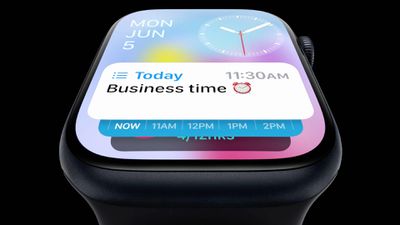
widgets in watchos10

What's Up With Widgets?

Widgets offer a new way to quickly bring up app-related information from any watch face on your Apple Watch, without having to open the corresponding app or rely exclusively on complications. In other words, if you choose simple faces without complications, you can still access the information you want, and if you like complication-rich faces, now you can get even more info at a glance.

In watchOS 10, an upward turn of the Digital Crown or a swipe up from the bottom of the watch face using your finger (Control Center is now accessed via the Side button) reveals a dynamic Smart Stack of widgets below the time and date that takes up half of the screen. You can scroll through these widgets with the Digital Crown or your finger, and tap a widget to open its corresponding app.
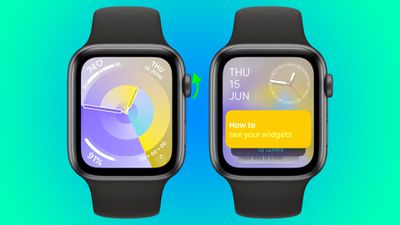
widgets watchos
By using machine learning, the order of widgets can change based on your needs at any given time of day.

For example, if you have upcoming events in your calendar, a boarding pass for an upcoming flight, or tasks you need to complete, these will be displayed in order of priority. Or if you start a timer, it will appear at the top of the widget stack so you can easily see how long is left.

In addition to relevance-based ordering, Smart Stack also includes the ability to manually organize widgets, so the Smart Stack can be as dynamic or as fixed as you want.

There are actually two types of widget in watchOS 10: Dedicated app widgets that provide information from a single app, and a user-configurable complications widget that shows up to three watch face-style complications.
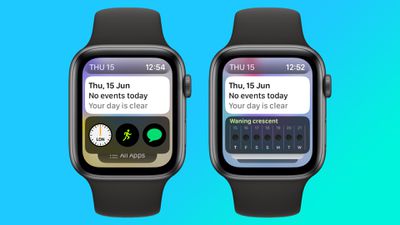
watch widgets complications
At the very bottom of the widget stack is a button that takes you to the traditional app menu to access all your Apple Watch apps.

Choosing the Widgets You Want to See

Like iPhone Home Screen widgets in iOS 16, Apple Watch widgets in watchOS 10 can work as a Smart Stack that changes based on the context or time of day, or you can manually choose the ones you want to include and also pin widgets to the top of the stack. The following steps show you how to edit widgets from any watch face.

  1. On an Apple Watch running watchOS 10, scroll up using the Digital Crown, or swipe up from the bottom of the screen using your finger.
  2. Long press any widget to enter the stack's jiggle mode. (Note that you can't edit the date and time display at the top of the stack.)
  3. Tap the red minus button on a widget to remove it from the stack, or tap the large plus button above the stack to add one.
  4. To pin a widget so that it remains at the top of the stack, tap its yellow pin icon.
  5. To edit the complications widget, scroll to the bottom and tap the minus icon next to a complication, then tap the plus symbol to replace it with another available complication. (Note: You can also pin the complications widget.)
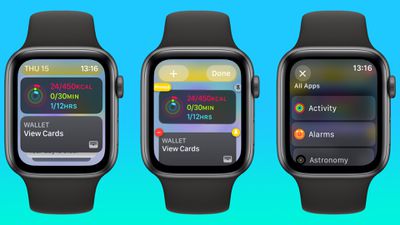
editing widgets watch

Summing Up

Apple is pitching widgets as a way of enjoying simple watch faces like Portrait, without being far from the sort of onscreen information that complications typically provide. By using the Digital Crown, real-time data from your favorite apps is just a dial turn away. What do you think of widgets? Let us know in the comments.

watchOS 10 will be released to the public this fall and is compatible with the Apple Watch Series 4 and later. In addition, you'll also need an iPhone capable of running iOS 17. This includes the iPhone XS or later and iPhone XR or later. For a full list of iPhones compatible with iOS 17, check out our quick guide.

Related Roundups: watchOS 26, watchOS 27
Related Forum: Apple Watch

Popular Stories

watchos 27

Apple Releases watchOS 27.2 With Siri AI Enhancements

Monday October 26, 2026 10:47 am PDT by
Apple today released watchOS 27.2, the first major update to the watchOS 27 operating system. watchOS 27.2 can be downloaded through the Settings app on the watch or the Apple Watch app on a connected iPhone. Software can only be installed when the Apple Watch is on the charger and has over 50 percent battery. According to Apple's release notes, watchOS 27.2 introduces new Siri AI...
watchos 27

Apple Seeds Updated watchOS 27.2 Release Candidate

Friday October 23, 2026 12:28 pm PDT by
Apple today seeded an updated version of the watchOS 27.2 release candidate, four days after the first RC became available. Registered developers and public beta testers can download software through the Apple Watch Settings app or using the Apple Watch app on iPhone. watchOS 27.2 adds new Siri AI features and extends Siri AI to more languages. This update provides enhancements to Siri...
General visionOS watchOS and tvOS Betas Feature Redux

Apple Releases Third watchOS 27.2, tvOS 27.2 and visionOS 27.2 Betas

Monday October 5, 2026 11:20 am PDT by
Alongside new betas of iOS 27.2, iPadOS 27.2, and macOS Golden Gate 27.2, Apple has released the third betas of watchOS 27.2, tvOS 27.2, and visionOS 27.2. The betas come two weeks after Apple released the second betas. Registered developers can download the betas through the Settings app on each device. With iOS 27.2 and watchOS 27.2, Apple is testing the new Health app that it showed...

Top Rated Comments

Adamov Avatar
44 months ago
What I really don't like in watchOS 10 is that Apple removed the ability to swipe between watch faces. Now you have to long press on the watch face to enter edit mode and then swipe :(
Score: 23 Votes (Like | Disagree)
44 months ago
This is a terrific update -- I don't currently use simple watch faces because of lack of complications.
Score: 13 Votes (Like | Disagree)
gank41 Avatar
44 months ago

What I really don't like in watchOS 10 is that Apple removed the ability to swipe between watch faces. Now you have to long press on the watch face to enter edit mode and then swipe :(
Not only did they remove the ability to swipe between Watch Faces, but they also added redundant ways of bringing up these new Widgets while removing the Favorite Apps option completely. You used to swipe up on the Watch Face to bring up the Control Center (Which is Great!), but they now moved that to the Side Button in lieu of the Favorite Apps. So now the only way to navigate to a commonly used app, like Settings, is to press the Digital Crown and then scroooollllllllll all the way to the end of your list of apps. I'm not sure how long things will stay this way, or if maybe we'll see options to choose what the Side button does? Doesn't seem like there needs to be two ways to do the same thing while removing something else.
Score: 12 Votes (Like | Disagree)
WarmWinterHat Avatar
44 months ago

So wish they dropped support for the watch 4. It’s like the iPad 2 or iPhone 6S of watches
There is absolutely nothing wrong with the s4.
Score: 8 Votes (Like | Disagree)
ColeSQ Avatar
44 months ago
I've always felt like I had to have multiple faces just to get easy access to all the data I want to see quickly on my watch so this feels like a big upgrade. No more scheduling faces for particular times of day to prioritize on the limited amount of data I could easily see onscreen, and probably a lot less squinting as a compromise for having a data rich face with tiny tiny data, all crammed in.

Score: 8 Votes (Like | Disagree)
GabooN Avatar
44 months ago

What I really don't like in watchOS 10 is that Apple removed the ability to swipe between watch faces. Now you have to long press on the watch face to enter edit mode and then swipe :(
Not happy to hear of this change. I currently swipe left or right one face to access frequently used things that I don't keep on the main face.


Score: 7 Votes (Like | Disagree)
Latest Stories
Apple Watch Ultra 4 Hits All-Time Low Price With Amazon's $99 Discount
12 hours ago
Reminder: Apple's Big Discount on Beats 360 Ear Cushions Ends Today
12 hours ago
Here's a New Tour of Apple's HomeView Software
12 hours ago
Apple Reveals New iPad Mini's Battery Capacity
13 hours ago
Top Stories: Apple's Big MacBook Pro, iPad mini and iMac Updates
15 hours ago
'Pluribus' Season 2 Reportedly Starts Production Today
21 hours ago
iPhone 18 Pro Sales Surge in China, Offsetting Decline in U.S. and Japan
22 hours ago
HomeView Software 27.2: Wallpapers, Control Center, and More
1 day ago
Apple Alerts Stores to iPhone Duo's Display Cracking Issue
1 day ago
iOS 27.3 Will Enable These Apple Intelligence Features in China
1 day ago
Apple Says iOS 27.3 Beta Coming Next Week
1 day ago
Apple's Flash Storage Suppliers Are Finally 'Getting Their Revenge'
1 day ago
14 New Things Your iPhone Can Do in iOS 27.2
1 day ago
iPhone Duo Review: One Week Later
1 day ago
Samsung Mocks iPhone Duo Display Cracks in New Ad Campaign
1 day ago
The MacRumors Show: OLED MacBook Pro, iPad Mini 8, and More
1 day ago
MacBook Pro With Touch Display: 15 More Details Revealed
1 day ago
Russia Places Apple on State Surveillance Registry
2 days ago
Halloween Weekend Brings Discounts on Apple Accessories and Pre-Orders
2 days ago
Apple Has Released More Than 25 New Products in the Past Two Months
2 days ago
Local Code Launches as Free, Private AI Assistant Tool for Mac
2 days ago
Apple Acquires Ascend.io
2 days ago
HomePod Mini 2 Launches Today: All the New Features
2 days ago
AirTag 2 4-Pack Drops to New Low Price of $69.99
2 days ago
Rian Johnson's iPhone Camera App Goes Viral
2 days ago
Where Did All the iPhone Duos Go? Mostly to Apple's Stores
2 days ago
Apple's Touchscreen MacBook Pro Could Ship 1.5M Units in 2027
2 days ago
New Apple TV 4K and iPad Mini: RAM Amounts Revealed
2 days ago
Apple Executive Comments on New iPad Mini Lacking 120Hz Display
2 days ago
Here's a Hands-On Look at HomePod Mini 2's New Two-Tone Colors
2 days ago

🔗 Related Apple News & Rumors

Stay updated with the latest Apple ecosystem news and verified rumors








































