With the release of OS X Yosemite, Apple has included a new set of "Continuity" features that connect iOS devices and the Mac in a number of ways. Most notably, Continuity allows users to place and answer calls with their Macs and iPads that are forwarded through the iPhone.
Similarly, Macs and iPads can now receive SMS messages, even ones sent from non-Apple devices. Before the launch of iOS 8.1 and OS X Yosemite, Macs and iPads could only receive iMessages, as SMS messages were limited to the iPhone via traditional delivery. iMessages are a part of Apple's proprietary messaging service made for the iPhone, iPad, and Mac, while SMS messages are usually intended for communications between mobile phones. Users can now also send SMS messages to any kind of device from the Mac and iPad. Apple previously referred to this feature as "SMS Relay" before the debut of iOS 8.1, but officially refers to it as "Text Message Forwarding" in the Settings app.
The ability to answer calls and SMS messages on a Mac is especially useful when an iPhone is across the room charging or otherwise inaccessible. The iPhone being used to relay calls and texts can even be in sleep mode, meaning that users can manage all incoming calls and text messages entirely through their Mac and iPad.
Before You Start
You need iOS 8.1 and OS X Yosemite in order to forward phone calls and SMS messages from your iPhone to your Mac or iPad. You also need to make sure that both your Mac and iPhone are logged into the same iCloud account. Phone calls and SMS routing are compatible with any iPhone and iPad running iOS 8.1 and any Mac that supports OS X Yosemite. Also, the Wi-Fi calling feature needs to be off to enable call forwarding, so ensure it is disabled by going to by going to Settings > Phone > Wi-Fi Calls.
Steps to Enable Text Message Forwarding
1. Turn on Wi-Fi on your iPhone (Settings -> Wi-Fi) and Mac (Menu Bar -> Wi-Fi -> Turn Wi-Fi On. SMS forwarding will still work between the Mac and an iOS device even if both are using different Wi-Fi networks.
2. On your Mac, open the Messages app and navigate to Menu Bar -> Messages -> Preferences -> Accounts -> Click on iMessage account -> Check the boxes next to your phone number and email. If your email is not listed, click Add Email and enter your email.
3. On your iPhone, add your email address to your iMessage by going to Settings -> Messages -> Send & Receive. A registered email for iMessage is required in order to enable text message forwarding.
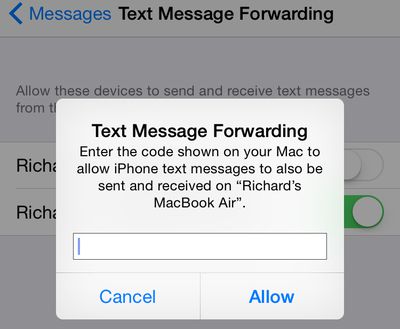
4. Turn on Text Message Forwarding on your iPhone by going to Settings -> Messages -> Text Message Forwarding -> Turn Text Message Forwarding On. A prompt will appear asking you to enter an activation code. The activation code will appear in your Mac's Messages app. Enter the activation code from your Mac in the prompt shown on your iPhone. An activation code is required for every device that you want to include in text message forwarding.
5. You will now be able to answer any incoming text message on your Mac. Text messages sent to your iPhone will also automatically appear as a push notification on your Mac in the upper-right corner. When a text message appears, you can answer it by clicking "Reply". Text messages will also appear in the Messages app on your Mac.
Steps to Enable Phone Call Forwarding
1. Turn on Wi-Fi on your iPhone (Settings -> Wi-Fi) and Mac (Menu Bar -> Wi-Fi -> Turn Wi-Fi On. Call forwarding requires both of your devices to be on the same Wi-Fi network.
2. Turn on iPhone Cellular Calls on your Mac (FaceTime -> Preferences -> Turn On iPhone Cellular Calls) and iPhone (Settings -> FaceTime -> iPhone Cellular Calls).
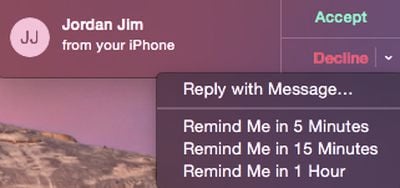
3. You may now begin placing and answering phone calls on your Mac. Incoming calls to your iPhone will appear as a push notification on your Mac in the upper-right corner. When a call appears, you have the option to answer it by clicking "Accept" or ignore it by clicking "Decline". You can also click on the arrow to the right of the Decline option and can then choose to send a text message or create a reminder to return the call later.
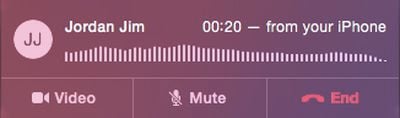
When you're on a call, you can silence yourself by clicking "Mute" or switch to a FaceTime video call by clicking "Video". If another person calls during your current phone call, you will also have the option to click "Hold & Accept" and can even switch between calls by clicking the connected arrows. You can also click "Merge" to merge both calls. If you want to transfer the call from your Mac back to your iPhone, unlock your iPhone tap the "Touch to return to Call" banner.
You can also make phone calls from a number of apps on the Mac, including Contacts, Safari, Mail, Maps and Spotlight. For example, you can call a business after searching for its information in Maps, and can highlight and call a phone number when one is displayed in Safari.
Troubleshooting
A number of users have had difficulty with trying to enable text message and phone call forwarding for their Macs. For text message forwarding, users on our forums have reported that a combination of logging out and back into iCloud on their devices, turning iMessage off and on in the iPhone's Settings app, disabling and enabling Wi-Fi, and restarting both devices fixed their problems. If the activation code to set up text message forwarding is not showing up on your Mac, ensure that an email address is activated for iMessage on your iPhone. Once again, you can activate an email for iMessage on your iPhone by going to Settings -> Messages -> Send & Receive.
Meanwhile, users attempting to fix problems with call forwarding have found that the most common solutions include rebooting both devices, logging out and back into iCloud on their devices, and turning FaceTime off and back on in the iPhone's Settings app. Otherusers have found that having Wi-Fi Calling enabled on the iPhone has caused call forwarding to not work, so once again ensure that setting is off by going to Settings > Phone > Wi-Fi Calls.
Text forwarding works fine but making and receiving does not. All I get is a failed message. I have rebooted, turned off and on FaceTime, and logged out and in my iCloud account. After all that the mini still won't make/receive calls.
I do see when calls are incoming I just can't answer them.
What I found interesting is that even though Apple states that all the devices must be on the same WiFi network, I still get messages on my iPad even when my iPhone is on LTE.
Wednesday October 28, 2026 10:11 am PDT by Juli Clover
Apple today announced a new high-end MacBook Pro, which is available in 14-inch and 16-inch sizes. The new device has a PROLED XDR display that supports touch gestures, and a glowing rear Apple logo.
Pricing on the MacBook Pro starts at $2,899 for the 14-inch model and $3,399 for the 16-inch model.
Apple says the MacBook Pro has the "world's best display in a pro laptop." The PROLED...
Friday October 30, 2026 3:20 pm PDT by Joe Rossignol
In a memo shared with Apple Stores and Apple Authorized Service Providers this week, and later obtained by MacRumors, Apple provided technicians with guidance on how to diagnose and address the iPhone Duo's inner display cracking issue.
If a customer reports the issue, Apple advised technicians to inspect the iPhone Duo and repair or replace it in accordance with their standard procedures....
Thursday October 29, 2026 1:47 pm PDT by Joe Rossignol
While the new iPad mini has an OLED display, the device does not support ProMotion, meaning the display's refresh rate is limited to 60Hz instead of 120Hz.
ProMotion support would have allowed for the iPad mini's refresh rate to automatically adjust from 10Hz to 120Hz depending on the content being displayed, but evidently Apple has kept the feature exclusive to the iPad Pro among iPad...






















































Top Rated Comments
Text forwarding works fine but making and receiving does not. All I get is a failed message. I have rebooted, turned off and on FaceTime, and logged out and in my iCloud account. After all that the mini still won't make/receive calls.
I do see when calls are incoming I just can't answer them.
Bummer