

Apple's watchOS 5 update, out now for all Apple Watch models with the exception of the original Apple Watch, introduces a fun new feature that mimics old school walkie talkies. With Walkie-Talkie, you can connect to your friends and family and have push-to-talk conversations right on your wrist.
The video below demonstrates Walkie-Talkie in action, while the post explains the steps to set it up and use it.
Turning on Walkie-Talkie and Adding Friends
Walkie-Talkie is an app on the Apple Watch with an icon that looks like a little walkie talkie on a field of yellow. Whenever you want to use Walkie-Talkie to communicate with someone, you'll need to open up the Walkie-Talkie app. The first step, though, is adding a friend to chat with.

- Open the Walkie-Talkie app.
- Turn the Digital Crown to scroll through your contacts.
- Choose a friend who has an Apple Watch and watchOS 5.
- Tap on the person's name in the contacts list.

- When a yellow card with their name appears on your Apple Watch in the Walkie-Talkie app, tap on the card.
- Press on the "Talk" button to initiate a connection.
- You'll need to wait for your friend to receive your message and approve the Walkie-Talkie connection. It will say "Connecting to [Your Friend's Name].
- When a connection is established, it will go back to the Talk button and you will be able to have a Walkie-Talkie conversation with your friend.
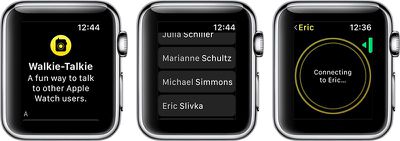
If a connection cannot be established, you'll see a popup that says "[Your Friend] is not available." If this happens, it means the person on the other end did not answer the incoming Walkie-Talkie notification.
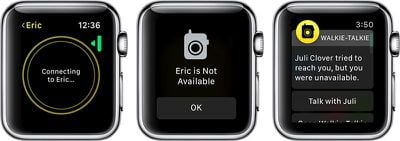
If the Walkie-Talkie connection screen hangs indefinitely on the connecting screen, it means the person does not have an Apple Watch or does not have watchOS 5 installed.
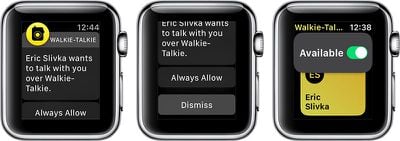
When a friend adds you to Walkie-Talkie, you'll see an incoming notification that your friend wants to establish a connection with you. To chat, you will need to tap on "Always Allow."
Talking With a Friend Using Walkie Talkie
Once a connection has been approved between you and your friend, you do not need to get approval for each and every message. You can just push to talk and whatever you say will be beamed to your friend's Apple Watch.
- Open up the Walkie-Talkie app.
- Tap on the card for the friend you want to talk to.
- Hold down the "Talk" button for the entire time that you're speaking. You will see little concentric circles flashing, which means your message is being relayed to your friend.
- When you're done speaking, stop pressing on the Talk button. This will allow your friend to press the Talk button on their end to send a response to you.
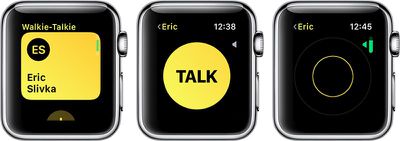
You can have multiple Walkie-Talkie connections with your friends, but you can only communicate with one friend at a time because Walkie-Talkie is a one-on-one feature. Group chats between multiple people are not supported.
Accessing Walkie-Talkie Quickly
Once you have a Walkie-Talkie connection established with at least one person, a little Walkie-Talkie icon will be displayed at the top of the Apple Watch's main screen. If you tap it, it will take you right into the Walkie-Talkie app.
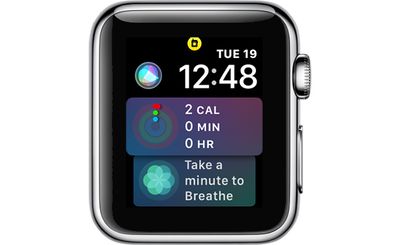
This icon also serves as an indicator that you're available for Walkie-Talkie conversations and that any friends you've established a connection with can message you at any time.
Adjusting Walkie-Talkie Volume
- Open the Walkie-Talkie app.
- Choose a Walkie-Talkie contact card.
- At the talk interface, turn the Digital Crown.
- A downward turn lowers the Walkie-Talkie volume, while an upward turn makes it louder. Turning it all the way down effectively mutes the conversation.
Using Walkie-Talkie With AirPods or Bluetooth Headphones
If you have AirPods or other Bluetooth headphones connected to your Apple Watch, you will hear incoming Walkie-Talkie messages through the accessory rather than directly through the Apple Watch. You will also be able to speak into the microphone of the AirPods, keeping your conversations more private.
Turning Off Walkie-Talkie and Removing Contacts
If you want to shut off Walkie-Talkie conversations and refuse incoming messages, you can do so by setting yourself to unavailable.
- Open up the Walkie-Talkie app.
- Scroll all the way to the top to see the "Available" toggle.
- Toggle "Available" to off.
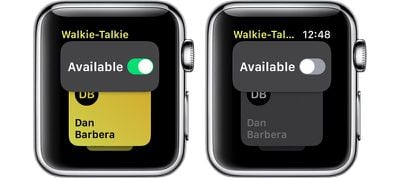
When your Walkie-Talkie availability is disabled in the Walkie-Talkie app, people who attempt to connect to you will see the message "[Your Name] is Not Available" and you will get a notification that someone attempted to reach you but you were unavailable with an option to go to the Walkie-Talkie app to resume the conversation.
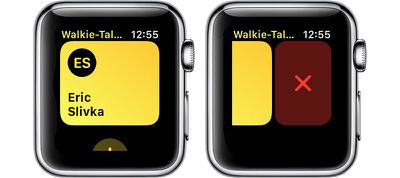
To remove a contact from Walkie-Talkie, at the main contact card interface, swipe to the left on a name in the list to bring up a red "X" button. Press on the X to remove the contact.
Walkie-Talkie Warnings
Walkie-Talkie takes precedence over other settings on your Apple Watch. You will hear your friend speaking even if your Apple Watch is set to silent, but it does not ignore Do Not Disturb settings.

















Top Rated Comments
Here are my steps to using the Walkie Talkie feature on Apple Watch:
1) Call Apple
2) Ask them to go back to creating amazing society-changing paradigm shifts, rather than churning out streams of gimmicky consumer electronics and marketing copy.
[doublepost=1530059917][/doublepost]In some ways this is Apple admitting that it's painful to text using just the Watch (i.e., via Siri). The Walkie Talkie interface is better and it's more immediate.