

The macOS menu bar is a great place for quickly accessing system and application functions using menu extras or "menulets", but it can get cluttered pretty quickly as more and more icons vie for a space there.
If the corner of your Mac's screen is fast becoming an eyesore, here are some quick and simple actions you can perform to bring order to the chaos, plus a few additional tips for making the most of Apple's menu bar extras.
How to Rearrange Icons in the Menu Bar
Plenty of menu bar icons offer useful shortcuts to app and system functions, and may take up permanent residence on your screen. But left to their own devices, the arrangement of said icons is likely to become haphazard. Fortunately, re-organizing them is simple, once you know how to do it.
- Hold down the Command (⌘) key.
- Hover your mouse cursor over the icon you want to move.
- Holding down the left mouse button, drag the icon into your preferred position on the menu bar. Other icons will step aside to make space for it.
- Let go of the left mouse button.
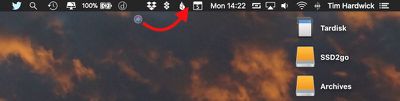
Note that the Notifications icon in macOS is designed to sit in the far right corner of the menu bar and cannot be moved elsewhere.
How to Remove System Icons From the Menu Bar
Icons linked to system controls can be easily removed from the menu bar in the following way:
- Hold down the Command (⌘) key.
- Hover your mouse cursor over the icon you want to remove.
- Holding down the left mouse button, drag the icon out of the menu bar and onto the desktop.
- Let go of the left mouse button.
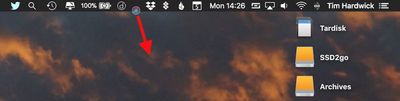
If the icon doesn't vanish with a "whoosh" sound, then it was likely put there by a third-party app you or another user installed. In that case, look for an option in the associated app's settings such as "Show in Menu Bar" and uncheck it.
How to Add System Icons to the Menu Bar
If you removed a system icon from the menu bar and would like it back, or if you'd like to add a fresh one, you can find options in the associated preference panes. For example, to reinstate the AirPlay icon in the menu bar:
- Click the apple symbol in the far left of the menu bar and select System Preferences....
- Select the Display preference pane.
- At the bottom of the pane, check the box to "Show mirroring options in the menu bar when available".
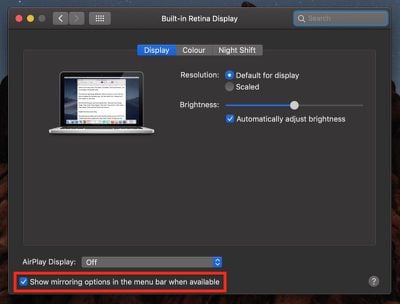
Similar menu bar options relating to Sound volume, Bluetooth, Siri, Time Machine, and Accessibility status can be found in their respective preference panes. In addition to Wi-Fi status (listed below), the Network pane will also offer "menulet" options for things like modems and VPNs if you have them set up, while menu bar icons related to keyboard, battery, user account, and date/time are located less obviously in the following preference pane menus and tabs:
- Keyboard -> Input Sources -> Show Input menu in menu bar.
- Energy Saver -> Show battery status in menu bar.
- Network -> Wi-Fi -> Show Wi-Fi status in menu bar.
- Users & Groups -> Login Options -> Show fast user switching menu as Full Name / Account Name / Icon.
- Date & Time -> Clock -> Show date and time in menu bar.
Menu Bar Extras
For one reason or another, some menulet options remain hidden in System Preferences by default. Interested users can find the full collection in the System folder: Open a Finder window, from the menu bar select Go -> Go to Folder..., and then navigate to /System/Library/CoreServices/Menu Extras.
Some of the extras in this folder are pretty obscure, but one or two might come in handy – like Eject if you use an optical drive, or Ink if you connect a graphics tablet to your Mac, for example. Just double-click any that look useful and they'll be added to the menu bar. They can be removed just as easily using the Command (⌘) key method described above.
Finally, users looking for a more comprehensive method of managing menu bar icons should consider third-party app Bartender 3 ($15).
















































Top Rated Comments
Seriously, I get so tired of searching for information on some subject where the answer could be presented in 50 words of prose, but instead the search results page is littered with ridiculously long YouTube videos. The most ludicrous one I ever came across was a several-minute-long video that consisted of a live screen capture of some dude typing at the bash prompt! WHAT IS WRONG WITH THESE PEOPLE?
I just like things organized the way I want them and not the way the system organizes them
I use Bartender 3 now to have better control and accomplish what I want
Well it sure is helpful!
The more you know:apple:
Click on those vertical dots (3 of them) on the icon in the Menu Bar - Prefferences
De-Select Launch at Login.
Do you mean this? If so - I hope it helps.