How to Turn a Photo Into an Apple Watch Face - MacRumorsOpen MenuShow RoundupsShow Forums menuVisit ForumsOpen Sidebar
Skip to Content

How to Turn a Photo Into an Apple Watch Face

by

With the launch of iOS 11 and watchOS 4, Apple made it easier than ever to turn your own personal photography into an Apple Watch face. As long as you're running iOS 11 or later and watchOS 4 or later on your iPhone and Apple Watch, follow these steps to quickly add one of your Camera Roll pictures onto the face of your Apple Watch, where you can even turn it into a kaleidoscope faces.

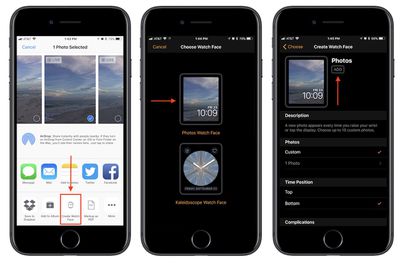
Turning a Camera Roll Photo Into a Photos Watch Face
how to watch face 2

  1. Open Photos in iOS.
  2. If you only want one image on your Photos Watch face, simply navigate to it now and jump to step 5.
  3. If you want to make an album of images, tap "Select" in the top right corner of the Photos app.
  4. Scroll through your library and pick up to ten photos to include in your new Photos Watch Face.
  5. Tap the share sheet extension in the bottom left corner of the screen.
  6. At the very bottom of the screen, scroll until you find "Create Watch Face" and tap it.
  7. Choose "Photos Watch Face".
  8. Edit the Time Position and add up to two Complications.
  9. Tap "Add".

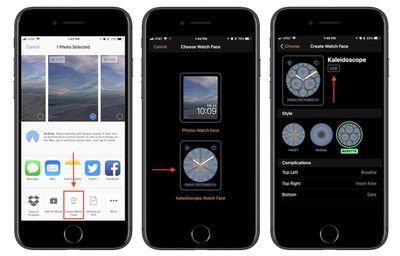
Turning a Camera Roll Photo Into a Kaleidoscope Watch Face
how to watch face 3

  1. Open Photos in iOS.
  2. Navigate to the image you want to turn into a Kaleidoscope Watch Face.
  3. Tap the share sheet extension in the bottom left corner of the screen.
  4. Tap "Create Watch Face."
  5. Choose "Kaleidoscope Watch Face."
  6. Pick between "Facet," "Radial," and "Rosette" designs for your Watch Face.
  7. Decide on adding up to three Complications.
  8. Tap "Add".

After following either of these guides, your all-new Apple Watch face will be waiting in "My Faces" within the Watch app on iOS. Once you find it in that list, you can tap on it, scroll down, and tap "Set as current Watch Face." If you have a Kaleidoscope Watch Face or decided on just one image for the Photos Watch Face, then that's what you'll see each time your wrist is raised. Anyone who has decided to add in multiple photos to their Photos Watch Face, however, will get a shuffled image with each wrist raise.


Related Roundup: Apple Watch 12
Buyer's Guide: Apple Watch (Buy Now)
Related Forums: Apple Watch, iOS 11

Top Rated Comments

macs4nw Avatar
117 months ago
Another nice and very useful feature for personalizing one's Watch.
Score: 1 Votes (Like | Disagree)

Popular Stories

Surprise and Shine Live Coverage Article

Apple Event Live Blog: iPhone Duo, iPhone 18 Pro, and More

Wednesday September 9, 2026 9:10 am PDT by
Apple's "Surprise and Shine" event kicks off today at 10:00 a.m. Pacific Time, where we're expecting to see the foldable iPhone Duo, the iPhone 18 Pro and Pro Max, Apple Watch Series 12 and Ultra 4 models, new AirPods 5 earphones, and perhaps some other announcements. Apple is providing a live video stream on its website, on YouTube, and in the company's TV app across various platforms. We...
Apple Watch Ultra 2 Black Titanium

New Apple Watch Series 12 and Apple Watch Ultra 4 Features Revealed

Sunday August 30, 2026 7:54 am PDT by
Bloomberg's Mark Gurman today further outlined what to expect from the Apple Watch Series 12 and Apple Watch Ultra 4 set to be unveiled on September 9. While it was initially rumored that Touch ID may be coming to the Apple Watch this year, Gurman reiterated that he does not expect the Series 12 or Ultra 4 to have any major design changes compared to the current Series 11 and Ultra 3 models. ...
apple surprise and shine event

Apple Event Today: iPhone 18 Pro and iPhone Duo Cheat Sheet

Tuesday September 8, 2026 10:24 am PDT by
Apple's biggest event of the year is almost here, and all eyes are on Cupertino. With the first foldable iPhone expected to headline Apple's "Surprise and Shine" event on Wednesday, September 9, at 10:00 a.m. Pacific Time, the rumor mill has been running full throttle, fuelled by the biggest single design change in the life of the iPhone. To get you up to speed, here's a quick reference...


🔗 Related Apple News & Rumors

Stay updated with the latest Apple ecosystem news and verified rumors