Apple today seeded new iOS 16 and iPadOS 16 beta updates to its public beta testing group, giving non-developers an opportunity to try out the new software ahead of its fall launch.


Got a tip for us?Let us know
Signing up to get the iOS 16 or iPadOS 16 beta is simple, and can be done by enrolling an iPhone or iPad in Apple's free Apple Beta Software Program. Instructions are below.
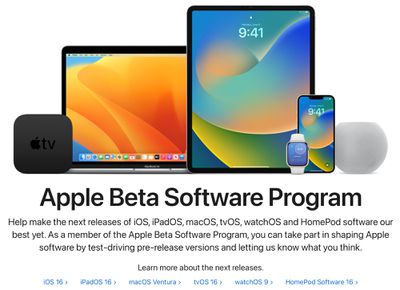
- On your iOS device, open up Safari and navigate to the Apple Beta Software Program website.
- Tap the Sign up button and enter your Apple ID credentials, or sign in with your Apple ID if you've signed up to beta test a previous update.
- Agree to the Apple Beta Software Program terms and conditions if required.
- After signing in, you'll see a main screen that's a Guide for Public Betas. Click on iOS (or iPadOS if you're installing on an iPad).
- Read through Apple's instructions carefully, and then using the link in the "Get Started" section, select "enroll your iOS device."
- Make sure to make an archived backup of your current version of iOS using Finder by following Apple's instructions or using our tutorial below. This will allow you to downgrade back to iOS 15 if necessary and is crucial if you don't enjoy the iOS 16 testing experience.
- Scroll down and tap on the "Download profile" button.
- When you see a popup that says the website is trying to download a configuration profile, tap on "Allow."
- Open up the Settings app on your iOS device and then tap on the "Profile Downloaded" section that's located right below your Apple ID information.
- In the upper right corner of the screen, tap on "Install."
- Enter your passcode and then tap "Install" again. If you have a prior beta profile installed, you may need to remove it at this point under General > Profile and redo the above steps. Otherwise, agree to the consent text and tap "Install" a third time.
- Tap Done.
- Your phone will prompt you to restart. From there, go back to the main Settings screen.
- Under "General," choose "Software Update" and then "Download and Install."
- Once the beta update has been downloaded you can tap on "Install Now" to get it set up, and from there, the iPhone will install the software, restart, and you'll be up and running with the iOS 16 software.
Compatibility
iOS 16 is compatible with the iPhone 8 and later, and it unfortunately drops support for the iPhone 6s and iPhone 7 models. iPhones able to run iOS 16 are listed below.
- iPhone 13
- iPhone 13 mini
- iPhone 13 Pro
- iPhone 13 Pro Max
- iPhone 12
- iPhone 12 mini
- iPhone 12 Pro
- iPhone 12 Pro Max
- iPhone 11
- iPhone 11 Pro
- iPhone 11 Pro Max
- iPhone XS
- iPhone XS Max
- iPhone XR
- iPhone X
- iPhone 8
- iPhone 8 Plus
- iPhone SE (2nd generation or later)
iPadOS 16 is compatible with the following iPads:
- iPad Pro (all models)
- iPad Air (3rd generation and later)
- iPad (5th generation and later)
- iPad mini (5th generation and later)
How to Make an Archived Backup
As mentioned in our tutorial for installing the public beta, it's essential to make an archived backup of your device if you want to be able to downgrade to a version of iOS 15. Once you upgrade to iOS 16, an iOS 16 backup cannot be restored to the iOS 15 software, which is why you need to make a backup beforehand. Here's how:
- Plug your iPhone, iPad, or iPod touch into your Mac using the supplied cable.
- Open a Finder window by clicking the Finder icon in the Dock.
- Click your iOS device's name in the sidebar.

- If this is the first time connecting your device to your Mac, click Trust in the Finder window.
- Tap Trust on your device when prompted, then enter your passcode to confirm.
- In the General tab, click the circle next to where it says Back up all of the data on your [iPhone/iPad/iPod touch] to this Mac.
- If you don't want to create an encrypted backup, or you've already set up encrypted backups, click Back Up Now at the bottom of the General tab.
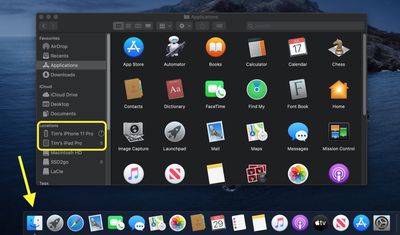
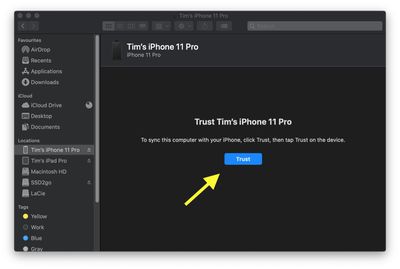
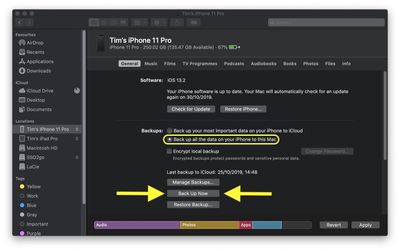
When the backup is finished, you can find the date and time of the last backup in the General tab, just above the Manage Backups button.
iOS 16 Features
iOS 16 is a significant update that brings an entirely overhauled Lock Screen experience on the iPhone, letting you customize the look of your device in new ways. Lock Screens can now have widgets, and can be linked to Focus modes.
FaceTime supports Handoff, there are new health and fitness features, Apple added better photo sharing with iCloud Shared Photo Library, and tons more. A full list of iOS 16 features can be found in our dedicated iOS 16 roundup.
Some of the iOS 16 features are not yet functional and won't be implemented until later in the beta testing period, which is something to be aware of. iOS and iPadOS 16 will be in beta testing for several months as Apple refines and updates the software ahead of its fall release.
Related Forum: iOS 16
Popular Stories

Apple Alerts Stores to iPhone Duo's Display Cracking Issue
In a memo shared with Apple Stores and Apple Authorized Service Providers this week, and later obtained by MacRumors, Apple provided technicians with guidance on how to diagnose and address the iPhone Duo's inner display cracking issue.
If a customer reports the issue, Apple advised technicians to inspect the iPhone Duo and repair or replace it in accordance with their standard procedures....

Apple Executive Comments on New iPad Mini Lacking 120Hz Display
While the new iPad mini has an OLED display, the device does not support ProMotion, meaning the display's refresh rate is limited to 60Hz instead of 120Hz.
ProMotion support would have allowed for the iPad mini's refresh rate to automatically adjust from 10Hz to 120Hz depending on the content being displayed, but evidently Apple has kept the feature exclusive to the iPad Pro among iPad...

Apple Avoids Showing Pinched Fingers on iPad Mini Page in South Korea
In the U.S. and most other countries, Apple's website shows the new iPad mini being held by pinched fingers, but this is not the case in South Korea.
The new iPad mini shown with pinched fingers on Apple's website in the U.S.
On its South Korean website, Apple simply shows an image of the iPad mini on its own.
The new iPad mini shown without pinched fingers on Apple's website in South Korea ...













































Top Rated Comments
For a brief moment, I felt like trying out the beta, but your post convinced me not to. Two months is not a long time to wait to experience iOS 16.