There's an app for everything these days, and it's easy to reach a point where you have so many of them on your iPhone that a sizable proportion are simply forgotten about, and soon storage space starts to become an issue.
Fortunately, there's an easy way that you can keep tabs on which apps you use the most and which ones have basically become redundant, and are just adding needless clutter to your Home Screen and eating up storage. Follow the steps below to learn how it's done.
How to Identify and Delete Apps You Don't Use
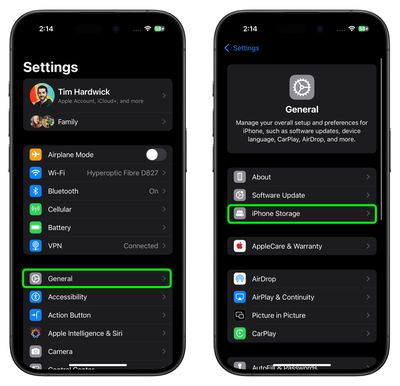
- Launch the Settings app on your iPhone.
- Tap General.
- Tap iPhone Storage.

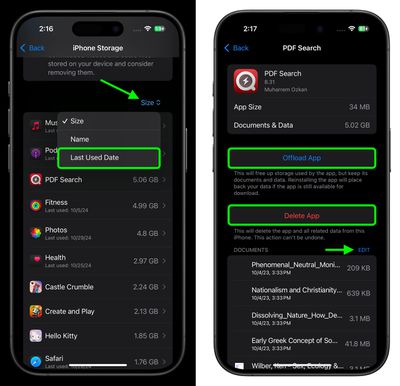
- A list of all the apps (including stock apps) on your iOS device will load in order of size, with the largest apps listed first. Scroll down the list and look at the Last Used: date underneath the title of each app. (Alternatively, change the Size sort filter to Last Used.) If it's been several weeks or months since you opened an app, or it says Never Used, then consider uninstalling it – tap the app in the list.
- Two uninstall options are presented on this screen. Tap Offload App to unload the app but preserve any documents and data (these are reinstated if you later reinstall the app) or tap Delete App to remove the app and all related data from your device. If there are any files associated with the app, you can also tap Edit and delete them individually.
If you tend to download a lot of apps that often get left unused, consider enabling the iPhone Storage menu recommendation to automatically Offload Unused Apps when you're low on storage.
How to Reinstall Deleted Apps
If you uninstall an app but later decide that you want to use it (and it's still available in the App Store) simply follow the steps below to reinstate it.
- Swipe down on your Home Screen to invoke search.
- Type in the name of the app you're looking for.
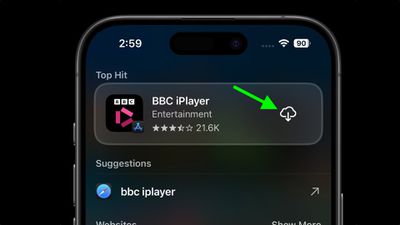
- Tap the Redownload button (the cloud icon with the arrow pointing out of it) to download the app once again.
Need to free up more storage? Check out our dedicated iPhone storage saving guide for more tips.