How to Convert Several Images into a Single PDF Using Preview - MacRumorsOpen MenuShow RoundupsShow Forums menuVisit ForumsOpen Sidebar
Skip to Content

How to Convert Several Images into a Single PDF Using Preview

by

Preview appOver the years, Adobe's PDF file type has become a universally accepted method for sharing digital documents. The format's cross-platform adoption means the documents can be viewed on almost any mobile device or computer, so it's no surprise to find that macOS includes native support for viewing and creating PDF files.

In the Preview app, for example, it's possible to create a single multi-page PDF document out of several separate image files. The feature is particularly useful if you need to share a number of scanned documents over email or digitize something for reference. Keep reading to learn how it's done.

How to Convert Several Images into a Single PDF

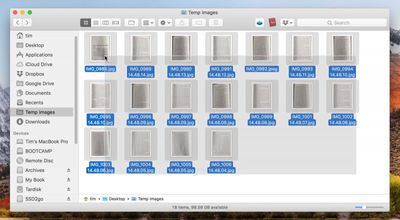
  1. In Finder, select all the images you want to include in the PDF. To do this, drag a box over several images files using your mouse cursor, or select them individually by holding the Command key and clicking them one by one.
    1 select images to pdf

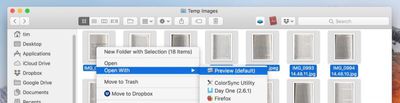
  2. Right-click (or Ctrl-click) one of the highlighted files and select Open With -> Preview in the contextual dropdown menu.
    2 open images in preview to pdf

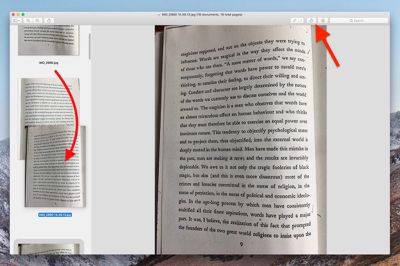
  3. In Preview's sidebar, drag the thumbnail images into the order that you want them to appear in the PDF document. Use the Rotate button in Preview's toolbar to change the orientation of individual pages (drag a selection over multiple pages to rotate several at once).
    3 rearrange images to pdf

  4. In the Preview menu bar, select File -> Print..., or use the Command+P keyboard shortcut to bring up the Print dialog.

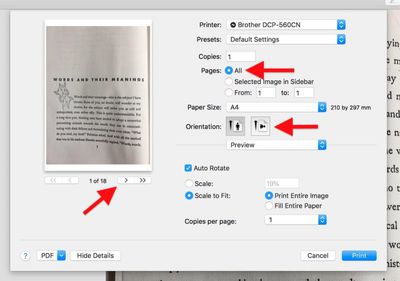
  5. Click Show Details to expand the Print dialog and browse the full set of options. Make sure the All button is selected in the Pages options. Note that you can double-check the orientation of each image by clicking the arrows below the print preview, and use the Orientation buttons to correct any if required.
    4 print options to pdf

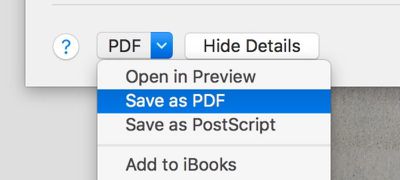
  6. Select Save as PDF from the PDF dropdown menu in the lower left of the Print dialog.
    5 save as pdf

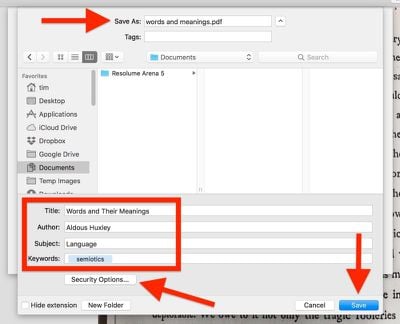
  7. The Save dialog will appear. Give your new PDF a name and choose a save location. Fill in the Title, Author, Subject, and Keywords fields if desired (these details are searchable in Spotlight). The Security Options... button also lets you optionally set a password to open the document, copy from it, and/or print it.
    6 name saved pdf

  8. Click Save when you're done.

Note that the Save as PDF option can be accessed from the Print dialog window within a number of macOS apps, not just Preview. You can use it to create PDFs of web pages viewed in Safari, or Word documents opened in Pages, for example.


Tag: Preview

Top Rated Comments

110 months ago
you guys ever get 2 preview windows when opening a bunch of .jpgs for example? i dont get why that happens to me sometimes. All images could be taken from same camera in same session too
Preferences > Images > Open all files in one window.
Score: 9 Votes (Like | Disagree)
philosopherdog Avatar
110 months ago
Preview is one of the most powerful apps that comes with MacOS. So many people who started on Windows think they need adobe PDF reader. Preview will do it all without opening your Mac to adobes insecure reader.
Score: 7 Votes (Like | Disagree)
Xavier Avatar
110 months ago
That sounds handy, mind sharing how you did it?
Sure. And you can change the values to what you'd like.


Attachment Image
Score: 5 Votes (Like | Disagree)
Solomani Avatar
110 months ago
Very useful tip, thanks MR. IMHO, this one single tip is more valuable than the last 50 rumor articles on this website.
Score: 3 Votes (Like | Disagree)
110 months ago
Neat tip! Reorganising and merging pages in Preview needs to be advertised more. So many people think you need Adobe Acrobat.
Score: 3 Votes (Like | Disagree)
110 months ago
I agreed with that statement until High Sierra. Several features are broken and PDF scaling is a blurry mess. There have been countless bug reports but no fixes. The majority of Apple's development resources have been reassigned to iOS and it is starting to show.
I'm not sure about that. This went around the Trolliverse awhile back, and came back as not true. Many people are using Preview with no problems at all.

So, unless you can more clearly state the problem as you see it and provide some way of duplicating it, I am going to have to say that I do not believe this statement.
[doublepost=1526751694][/doublepost]
Another thought about PDF on the Mac. It is not (as intimated by the article) merely a file format supported by Preview that was added because it is useful across platforms. The integration of PDF into the Mac is much deeper than that. One of the best design decisions Apple made with the development of OS X was creating Quartz as a display technology. Quartz is essentially Apple's implementation of PDF. Native outputting of virtually any document to PDF has been a feature of OS X from day one because it's integrated into the OS. At one point early in the OS X development process Apple even demonstrated a PDF editing tool. That app disappeared pretty quickly though. I suspect they ran into trouble with Adobe.
Copyright lawyers rule the world!
[doublepost=1526752307][/doublepost]
Very nice tip. Not around my Mac so can't test. Does it tip only work for images? I would like to combine some pdf files. And can it delete pdf pages? That's the only feature I miss when I stop using adobe acrobat.
its easy to combine pdf files in Preview. One way is to have both files open in separate windows, display the thumbnails in the sidebar, and drag or copy and paste from one to the other. you can also change the order of pages and and delete pages fro thumbnails. You can even create an automator workflow to select the pdfs and then combine them into one.
[doublepost=1526752361][/doublepost]
Neat. How do you get it to arrange the order of images in the pdf?
view thumbnails, and drag
[doublepost=1526753307][/doublepost]
Anyone know of a way to create the PDF in B&W so the size isn't gargantuan?
you can file print, then select pdf, this "flattens" the file and makes it very small. but not in black and white.

if you really want that, select file Export, use "quartz filter" to select Black and White
[doublepost=1526753610][/doublepost]
I wrote a native MacOS app in Swift that does the same! Was a fun project. Workflow is much simpler if all you want to do it convert images to a PDF.

Search Concat in Mac App Store (sorry on phone and cannot provide link)
Sounds fun. I wrote an Automator Action, that I also save as a service to Preview. This program annotates widgets (example was forms using fillable fields). It has multiple modes. Reset to clear widgets, index to number the widgets, import to load widgets from csv, and paste to paste widgets from Numbers (I guess could also be Excel or others too). Very fun, contact me if you want code, I also aim to post on GitHub. Love to see someone pick it up and go commercial
[doublepost=1526754694][/doublepost]
Very timely for me. I have been trying to do this from my Win machine, but the resulting PDF is too large for email. Does anyone know if Preview will compress the images or resulting PDF to a manageable size?

Also, is there an equivalent workflow in iOS? My source images are all pictures taken from my iPhone. Would be a huge timesaver to dump them into a single PDF for sharing by email on my iPhone.
Many ways to compress pdfs. "Flatten", by file print, then select PDF. file Export, choose format, save as images. Automator to compress images.

iOS: https://thesweetsetup.com/apps/best-pdf-manager-editor-ipad/. this reviews many PDF editor apps. I personally used PDF Expert by Readle - excellent app.
Score: 2 Votes (Like | Disagree)

Popular Stories

iPhone Duo Display Cracking

Apple Alerts Stores to iPhone Duo's Display Cracking Issue

Friday October 30, 2026 3:20 pm PDT by
In a memo shared with Apple Stores and Apple Authorized Service Providers this week, and later obtained by MacRumors, Apple provided technicians with guidance on how to diagnose and address the iPhone Duo's inner display cracking issue. If a customer reports the issue, Apple advised technicians to inspect the iPhone Duo and repair or replace it in accordance with their standard procedures....
iPad mini OLED feature 1

Apple Executive Comments on New iPad Mini Lacking 120Hz Display

Thursday October 29, 2026 1:47 pm PDT by
While the new iPad mini has an OLED display, the device does not support ProMotion, meaning the display's refresh rate is limited to 60Hz instead of 120Hz. ProMotion support would have allowed for the iPad mini's refresh rate to automatically adjust from 10Hz to 120Hz depending on the content being displayed, but evidently Apple has kept the feature exclusive to the iPad Pro among iPad...
Pinched iPad Mini

Apple Avoids Showing Pinched Fingers on iPad Mini Page in South Korea

Thursday October 29, 2026 11:52 am PDT by
In the U.S. and most other countries, Apple's website shows the new iPad mini being held by pinched fingers, but this is not the case in South Korea. The new iPad mini shown with pinched fingers on Apple's website in the U.S. On its South Korean website, Apple simply shows an image of the iPad mini on its own. The new iPad mini shown without pinched fingers on Apple's website in South Korea ...
Latest Stories
Apple's HomeView Ships With Six-Month-Old Software
5 minutes ago
Three New iPads Rumored to Launch in First Half of 2027
15 minutes ago
Apple Offers Steps to Fix Daylight Saving Time Bug on Apple Watch
4 hours ago
Apple Watch Ultra 4 Hits All-Time Low Price With Amazon's $99 Discount
23 hours ago
Reminder: Apple's Big Discount on Beats 360 Ear Cushions Ends Today
23 hours ago
Here's a New Tour of Apple's HomeView Software
23 hours ago
Apple Reveals New iPad Mini's Battery Capacity
1 day ago
Top Stories: Apple's Big MacBook Pro, iPad mini and iMac Updates
1 day ago
'Pluribus' Season 2 Reportedly Starts Production Today
1 day ago
iPhone 18 Pro Sales Surge in China, Offsetting Decline in U.S. and Japan
1 day ago
HomeView Software 27.2: Wallpapers, Control Center, and More
2 days ago
Apple Alerts Stores to iPhone Duo's Display Cracking Issue
2 days ago
iOS 27.3 Will Enable These Apple Intelligence Features in China
2 days ago
Apple Says iOS 27.3 Beta Coming Next Week
2 days ago
Apple's Flash Storage Suppliers Are Finally 'Getting Their Revenge'
2 days ago
14 New Things Your iPhone Can Do in iOS 27.2
2 days ago
iPhone Duo Review: One Week Later
2 days ago
Samsung Mocks iPhone Duo Display Cracks in New Ad Campaign
2 days ago
The MacRumors Show: OLED MacBook Pro, iPad Mini 8, and More
2 days ago
MacBook Pro With Touch Display: 15 More Details Revealed
2 days ago
Russia Places Apple on State Surveillance Registry
2 days ago
Halloween Weekend Brings Discounts on Apple Accessories and Pre-Orders
2 days ago
Apple Has Released More Than 25 New Products in the Past Two Months
2 days ago
Local Code Launches as Free, Private AI Assistant Tool for Mac
2 days ago
Apple Acquires Ascend.io
2 days ago
HomePod Mini 2 Launches Today: All the New Features
2 days ago
AirTag 2 4-Pack Drops to New Low Price of $69.99
2 days ago
Rian Johnson's iPhone Camera App Goes Viral
2 days ago
Where Did All the iPhone Duos Go? Mostly to Apple's Stores
2 days ago
Apple's Touchscreen MacBook Pro Could Ship 1.5M Units in 2027
2 days ago

🔗 Related Apple News & Rumors

Stay updated with the latest Apple ecosystem news and verified rumors