How to Back Up Your iOS Device on a Mac Running Catalina - MacRumorsOpen MenuShow RoundupsShow Forums menuVisit ForumsOpen Sidebar
Skip to Content

How to Back Up Your iOS Device on a Mac Running Catalina

by

This article shows you how to back up your iPhone, iPad, or iPod touch to your Mac using the new route in Catalina.

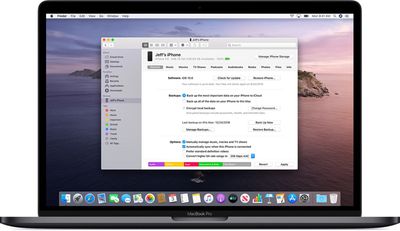
With the release of macOS Catalina, Apple said goodbye to iTunes and broke it up into separate Mac apps for Music, Podcasts, and Apple TV, meaning the functions for managing a connected iPhone, ‌iPad‌ or iPod touch needed a new home.

macoscatalinafinder
It's not immediately obvious, but Apple chose to integrate these device functions into the Finder, so now you can choose media sync settings, manage iCloud and local backups, and restore or update your iOS device without even opening another application on your Mac.

Keeping a local backup of your iOS device ensures that, should you ever lose it, you'll be able to restore all your information on a replacement device. You can also encrypt your local backup to keep private information like your passwords and personal health or activity data safe and secure. Keep reading to learn how.

How to Back Up Your iOS Device in macOS Catalina

  1. Plug your iPhone, ‌iPad‌, or iPod touch into your Mac using the supplied cable.
  2. Open a Finder window by clicking the Finder icon in the Dock.
  3. Click your iOS device's name in the sidebar.
    finder

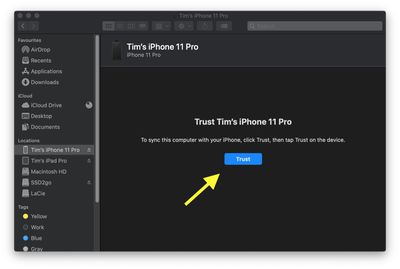
  4. If this is the first time connecting your device to your Mac, click Trust in the Finder window.
    finder

  5. Tap Trust on your device when prompted, then enter your passcode to confirm.
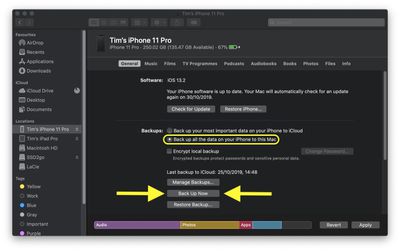
  6. In the General tab, click the circle next to where it says Back up all of the data on your [iPhone/iPad/iPod touch] to this Mac.

  7. If you don't want to create an encrypted backup, or you've already set up encrypted backups, click Back Up Now at the bottom of the General tab.
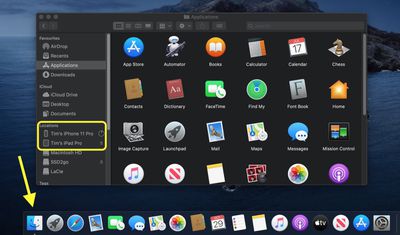
    finder

When the backup is finished, you can find the date and time of the last backup in the General tab, just above the Manage Backups button.

How to Encrypt an iOS Device Backup in macOS Catalina

  1. Plug your iPhone, ‌iPad‌, or iPod touch into your Mac using the supplied cable.
  2. Open a Finder window by clicking the Finder icon in the Dock.
  3. Click your iOS device's name in the sidebar.
    finder

  4. If this is the first time connecting your device to your Mac, click Trust in the Finder window.
    finder

  5. Tap Trust on your device when prompted, then enter your passcode to confirm.
  6. Click the checkbox next to Encrypt local backup in the General tab.
  7. Choose a password to protect your device backup, then verify it and tick the box if you want to remember the password in your keychain.
  8. Click Set Password.
    finder

  9. Enter your passcode on your iOS device to begin the backup.
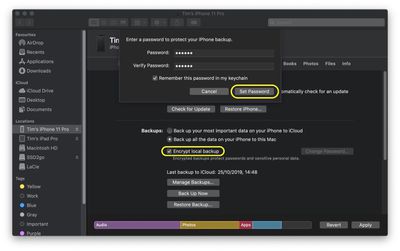
When the backup is finished, you can find the date and time of the last backup in the General tab, just above the Manage Backups button.

Related Forum: macOS Catalina

Popular Stories

iPhone Duo Display Cracking

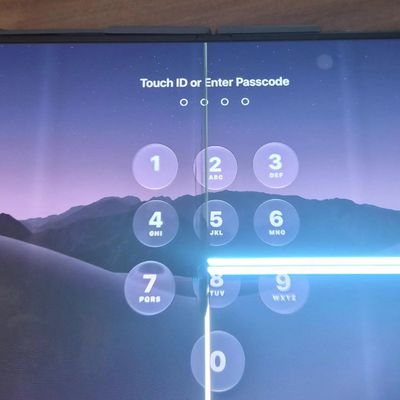
Apple Alerts Stores to iPhone Duo's Display Cracking Issue

Friday October 30, 2026 3:20 pm PDT by
In a memo shared with Apple Stores and Apple Authorized Service Providers this week, and later obtained by MacRumors, Apple provided technicians with guidance on how to diagnose and address the iPhone Duo's inner display cracking issue. If a customer reports the issue, Apple advised technicians to inspect the iPhone Duo and repair or replace it in accordance with their standard procedures....
iPad mini OLED feature 1

Apple Executive Comments on New iPad Mini Lacking 120Hz Display

Thursday October 29, 2026 1:47 pm PDT by
While the new iPad mini has an OLED display, the device does not support ProMotion, meaning the display's refresh rate is limited to 60Hz instead of 120Hz. ProMotion support would have allowed for the iPad mini's refresh rate to automatically adjust from 10Hz to 120Hz depending on the content being displayed, but evidently Apple has kept the feature exclusive to the iPad Pro among iPad...
Pinched iPad Mini

Apple Avoids Showing Pinched Fingers on iPad Mini Page in South Korea

Thursday October 29, 2026 11:52 am PDT by
In the U.S. and most other countries, Apple's website shows the new iPad mini being held by pinched fingers, but this is not the case in South Korea. The new iPad mini shown with pinched fingers on Apple's website in the U.S. On its South Korean website, Apple simply shows an image of the iPad mini on its own. The new iPad mini shown without pinched fingers on Apple's website in South Korea ...


Latest Stories
Nearly Every M5 MacBook Air Now $200 Off on Amazon
6 hours ago
Apple's HomeView Ships With Six-Month-Old Software
8 hours ago
Three New iPads Rumored to Launch in First Half of 2027
8 hours ago
Apple Offers Steps to Fix Daylight Saving Time Bug on Apple Watch
12 hours ago
Apple Watch Ultra 4 Hits All-Time Low Price With Amazon's $99 Discount
1 day ago
Reminder: Apple's Big Discount on Beats 360 Ear Cushions Ends Today
1 day ago
Here's a New Tour of Apple's HomeView Software
1 day ago
Apple Reveals New iPad Mini's Battery Capacity
1 day ago
Top Stories: Apple's Big MacBook Pro, iPad mini and iMac Updates
1 day ago
'Pluribus' Season 2 Reportedly Starts Production Today
2 days ago
iPhone 18 Pro Sales Surge in China, Offsetting Decline in U.S. and Japan
2 days ago
HomeView Software 27.2: Wallpapers, Control Center, and More
2 days ago
Apple Alerts Stores to iPhone Duo's Display Cracking Issue
2 days ago
iOS 27.3 Will Enable These Apple Intelligence Features in China
2 days ago
Apple Says iOS 27.3 Beta Coming Next Week
2 days ago
Apple's Flash Storage Suppliers Are Finally 'Getting Their Revenge'
2 days ago
14 New Things Your iPhone Can Do in iOS 27.2
2 days ago
iPhone Duo Review: One Week Later
2 days ago
Samsung Mocks iPhone Duo Display Cracks in New Ad Campaign
2 days ago
The MacRumors Show: OLED MacBook Pro, iPad Mini 8, and More
2 days ago
MacBook Pro With Touch Display: 15 More Details Revealed
2 days ago
Russia Places Apple on State Surveillance Registry
2 days ago
Halloween Weekend Brings Discounts on Apple Accessories and Pre-Orders
2 days ago
Apple Has Released More Than 25 New Products in the Past Two Months
2 days ago
Local Code Launches as Free, Private AI Assistant Tool for Mac
2 days ago
Apple Acquires Ascend.io
2 days ago
HomePod Mini 2 Launches Today: All the New Features
2 days ago
AirTag 2 4-Pack Drops to New Low Price of $69.99
2 days ago
Rian Johnson's iPhone Camera App Goes Viral
2 days ago
Where Did All the iPhone Duos Go? Mostly to Apple's Stores
3 days ago

🔗 Related Apple News & Rumors

Stay updated with the latest Apple ecosystem news and verified rumors