How to Add and Organize Glances on Apple Watch - MacRumorsOpen MenuShow RoundupsShow Forums menuVisit ForumsOpen Sidebar
Skip to Content

How to Add and Organize Glances on Apple Watch

by

The Glances feature of Apple Watch allows you to see an overview of content from specific apps. It is a great way to get a quick update on the day's content without having to open an app, either on your iPhone or on Apple Watch.

For those interested in learning the basics of the Glances feature, today we are going to show you how to add, remove, and organize Glances on Apple Watch so you can customize your content for a more personalized experience.

How to organize Glances in Apple Watch 4

Viewing Glances

  1. Press the Digital Crown to navigate to the watch face on Apple Watch if necessary.
  2. Swipe up from the bottom of the screen.
  3. Swipe left or right to view all of your Glances.

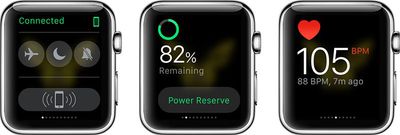
There are several default Glances that will be immediately available on your Apple Watch right out of the box. These include a Control Center for pinging the iPhone and controlling features like Airplane Mode/Do Not Disturb, a battery Glance that offers up current battery life plus an option for Power Reserve mode, and Glances for Weather, Calendar events, current heart rate, activity level, world clock, and stocks.
applewatchglances
You can't interact with Glances (there are no special Force Press options here) but tapping on many of the Glances with accompanying apps will open up the app. For example, tapping the Weather Glance will open up the full Weather app. You can add additional Glances through third-party apps and control which Glances are displayed and in which order, as outlined below.

Adding Glances

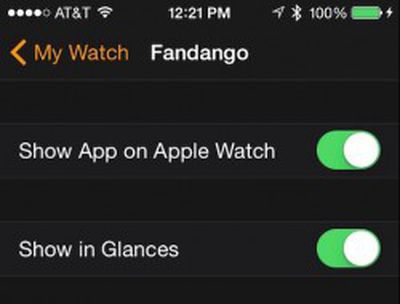
Some third-party Apple Watch apps include Glances, which need to be manually enabled using the Apple Watch companion app on your iPhone. Once turned on, you can access the Glances as you would the default Glances.
How to organize Glances in Apple Watch 1

  1. Open the Apple Watch app on your iPhone.
  2. Tap the My Watch tab.
  3. Scroll down to the list of compatible apps and select the one you wish to add.
  4. If it is not already on your Apple Watch, toggle the "Show App on Apple Watch" switch to the On position.
  5. Toggle the "Show in Glances" switch to the On position.
  6. The app will automatically be added to your list of Glances.

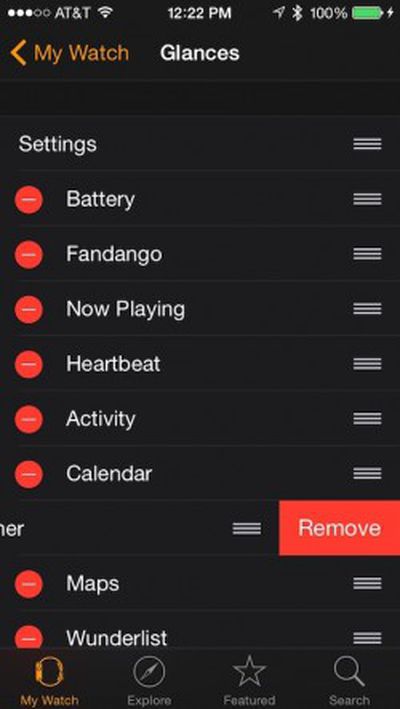
You can also add a Glance via the Apple Watch app on your iPhone under the Glances section in the My Watch tab. Simply scroll down to the "Do Not Include" section and tap the green add icon on the left side of the app.
How to organize Glances in Apple Watch 3

Organizing and Removing Glances

Similar to the way you organize the Today View widgets on your iPhone, you can also organize Glances for your Apple Watch.

  1. Open the Apple Watch app on your iPhone
  2. Tap the My Watch tab.
  3. Select Glances.
  4. To remove an app, tap the red remove icon on the left side of the app.
  5. To reorder apps, hold and drag the reorder icon on the right side of the app and move it to the new location on the list.

Experiment with your Glances. You may discover that some are more important to you than others, and keeping this section culled down to your most used apps can make it easy to access them quickly. Once your Glances are in order, you will be able to quickly see a short summary of the content of your most important apps.
Related Roundup: Apple Watch 11

Top Rated Comments

acctman Avatar
147 months ago
No offense to the author or macrumor but these Apple Watch how-to articles are laughable. You have videos, manual and common sense already built into the Apple Watch app and watch itself. It's not like you're teaching anything hidden. How about showing the non-common sense features.

- Like sending your location from within a watch message
- Chaning the colors of animated emojis
- Managing and controlling your storage space
- etc ... Useful stuff not saying these articles aren't useful but it more like duh we know this.

Score: 10 Votes (Like | Disagree)
147 months ago
Neat, next up, how to glance at the time on Apple Watch...
Score: 8 Votes (Like | Disagree)
147 months ago
So much for glances. How about Apple addressing glimpses, gazes, looks and the cold stare?
Score: 5 Votes (Like | Disagree)
147 months ago
The amount of articles about this watch seem disproportionate to the amount of readers that have one. Several comments are always along the lines of, "still waiting for mine...."

Maybe these articles should be held back until June or July when their watches actually ship!
Score: 2 Votes (Like | Disagree)
147 months ago
The amount of articles about this watch seem disproportionate to the amount of readers that have one. Several comments are always along the lines of, "still waiting for mine...."

Maybe these articles should be held back until June or July when their watches actually ship!
Plenty of people who read articles here don't participate in the forums or even register. Why not have the information available when the product is available so that those who might want it (no matter how many there might be) would have access to it. And when more people get the product the information will already be there. Waiting for some number or something like that doesn't make much sense.
Score: 1 Votes (Like | Disagree)
bushido Avatar
147 months ago
for some reason Apple decides to call them "Checks" in german which isn't even a German word. took me forever to realize that these are in fact the glances
Score: 1 Votes (Like | Disagree)

Popular Stories

3 4 24 Sport Band Refresh Feature

Sketchy Rumor Claims Apple Watch Series 12 Could Introduce Sensor in Band

Friday July 3, 2026 8:54 am PDT by
The Apple Watch Series 12 could ship with a new health sensor built directly into one of its bands, according to a sketchy rumor from a known leaker. The leaker known as "Kosutami" says the sensor will be injection-molded into a silicone band, and only a silicone band, apparently because Apple has not yet solved how to embed similar hardware in bands made from other materials. No detail was...
watchos 27

Siri AI Comes to Apple Watch in watchOS 27 Beta 3

Monday July 6, 2026 1:24 pm PDT by
With watchOS 27 beta 3, Apple added support for Siri AI and the Siri app, so Apple Watch users can now use the features right from their wrist. Apple said Siri AI would be coming to the watch back when watchOS 27 was first introduced, but the feature wasn't live until now. The Dynamic App Grid that pops up when the Digital Crown is pressed displays the Siri app in the center, and the...
Apple Watch Series 10 Jet Black

Apple Watch Series 13 Rumored to Mark the End of an Era

Wednesday July 8, 2026 1:29 pm PDT by
While the Apple Watch Series 12 is still a few months away, a new rumor suggests that next year's Apple Watch Series 13 will mark the end of an era. According to a recent post from a known leaker on the Chinese social media platform Weibo, the Apple Watch will be receiving a major redesign next year, and this will apparently include a new way of attaching bands to the watch. As a result, the ...

🔗 Related Apple News & Rumors

Stay updated with the latest Apple ecosystem news and verified rumors